
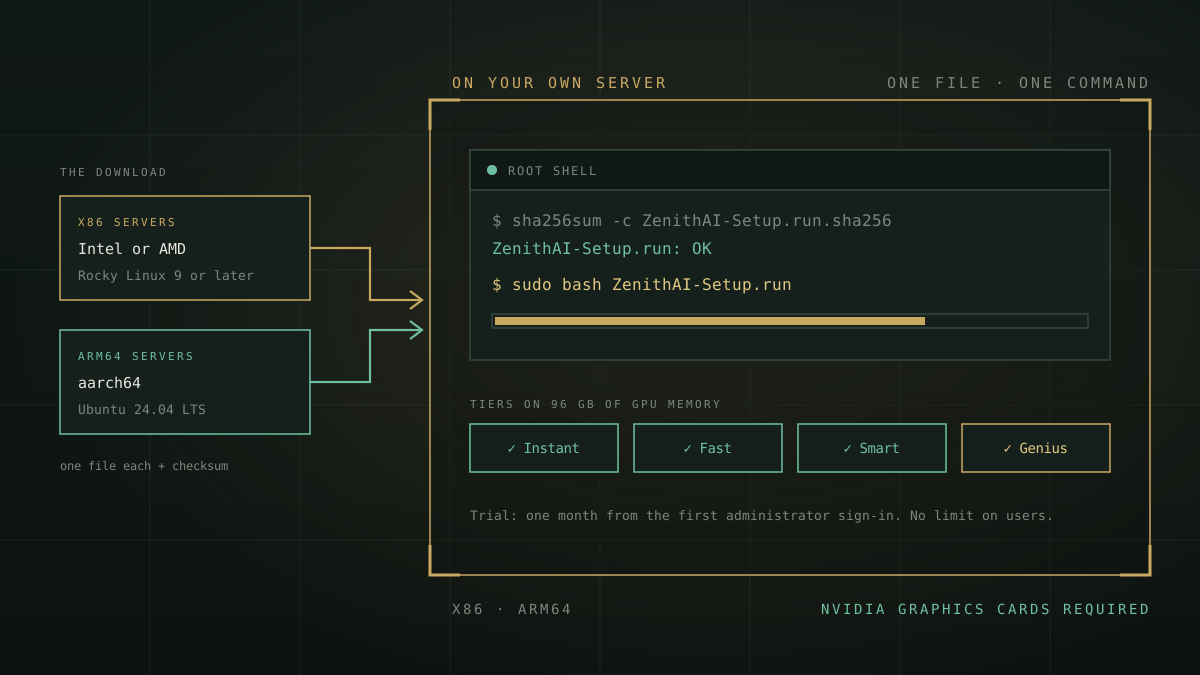
From today you can download ZenithAI and install it yourself. There are two installers: one for x86 servers and one for ARM64 servers. Each is a single file of about 130 MB. You check it, run one command as root, answer six questions, and your organisation has its own AI on a server you control, free for one month with no limit on users.
- What: ZenithAI 4.5 as a single-file installer for your own server.
- Servers: x86 with Rocky Linux 9 or later, or ARM64 with Ubuntu 24.04 LTS.
- Hardware: NVIDIA graphics cards. 96 GB of graphics memory runs all four tiers.
- Steps: download, check the file, run one command, answer six questions.
- Trial: free for one month from the first sign-in, with no limit on users.
- Where: the download page.
The rest of this post gives the detail: the hardware, the four steps, what gets set up, and where the trial stops.
What we’re releasing
Version 4.5 of ZenithAI now comes as two downloadable installers. Pick the one that matches your server.
| Installer | Server | Operating system | Size |
|---|---|---|---|
| x86 | 64-bit Intel or AMD | Rocky Linux 9 or later. Also runs on Red Hat Enterprise Linux and AlmaLinux, version 9 or later. | About 137 MB |
| ARM64 | ARM64 (aarch64), 16 or more cores | Ubuntu 24.04 LTS | About 131 MB |
Both need NVIDIA graphics cards. Each installer comes with a checksum file, and each one checks the server before it changes anything. If you run the x86 file on an ARM64 machine, or the other way round, it stops.
Until now, ZenithAI arrived one way: our engineers installed it inside your infrastructure as a managed deployment. That route stays, and for many organisations it’s still the right one. The installer adds a second route for IT teams who want to try the product on their own hardware first, at their own pace.
Why a download, and why now
More IT teams want AI that runs on their own servers. The reasons are familiar: data that shouldn’t sit with an outside provider, a cost that doesn’t grow with every user, and regulators who ask where the processing happens. We’ve written about those reasons in private AI versus cloud AI and in the private AI deployment guide, so we won’t repeat them here.
The harder part has been getting started. Putting an open model on a server is a weekend project. Turning it into something a whole organisation can use is not: you need a chat application, user accounts, document search, a database, HTTPS, web search and file handling, all working together. That assembly work can take weeks before anyone asks a real question.
The installer sets up those parts together, already connected. Your trial month goes on testing with real users and real documents, not on building.
What hardware you need
The short answer to “how many GPUs do I need for private AI?” is this: for ZenithAI, 96 GB of NVIDIA graphics memory runs all four tiers. That can be one 96 GB card or two 48 GB cards.
| Graphics memory | Tiers you get |
|---|---|
| 96 GB (one card, or two 48 GB cards) | Instant, Fast, Smart and Genius |
| Less than 96 GB | Instant, Fast and Smart, without Genius |
The rest of the minimum server looks like this:
- System memory: 128 GB.
- Storage: a 1 TB SSD. The install folder needs at least 40 GB free, and about 80 GB for all four tiers.
- NVIDIA driver: version 580 or newer, working before you start. The command
nvidia-smishould list your cards. If Secure Boot is on, the driver has to be signed. - Network: internet access during setup, and ports 80 and 443 open to your users.
- Access: root on the server.
You don’t need a separate database or web server. The installer provides both.
Minimum means minimum. If you expect heavy use, large document collections or long recordings, buy above it: more storage first, then more memory. The hardware list in the documentation has the current details, and it’s the page to trust if it ever differs from this post.
The installation in four steps
The steps are the same on both platforms.
- Get the files. Fill in the short form on the download page. The links for both installers and their checksum files appear on that page. Put the installer and its checksum file in the same folder on the server.
- Check the file, then run it as root. The check must print “OK” before you go on.
- Answer the questions and wait for the progress bar. The installer first shows what it found: processor, memory, disks, graphics cards and the tiers they can hold. It asks you to confirm before it changes anything. The full log goes to
/var/log/zenithai-setup.log. - Open the address it prints at the end. Sign in with the administrator email you gave, set a password, and create accounts for your colleagues.
The installation guide has every detail, including what to do about firewalls on each operating system.
The six questions
- Install folder. The default is
/opt/zenithai. - Domain name. Or none, and your users connect by IP address.
- HTTPS certificate. Self-signed, your own certificate files, or a free Let’s Encrypt certificate, which needs a public domain and port 80. A self-signed certificate shows a browser warning until you replace it.
- Administrator email. The first administrator signs in with it.
- Organisation name. It goes into the licence.
- Document recognition. Whether to install reading of scanned PDFs and photos. The default is yes.
If the server has two graphics cards, the installer also shows which tier goes on which card, and you can change it.
Have a server with NVIDIA cards ready? Get both installers and their checksum files. The trial runs for one month from your first sign-in, with no limit on users.
Download the installerWhat the installer sets up
- The ZenithAI application, reachable only through the web server.
- The AI models for the tiers your graphics cards can hold. They run on your server.
- A database, on the same server.
- A web server with HTTPS. Plain HTTP is redirected to HTTPS, and uploads of up to 1 GB are allowed.
- Web search, document recognition and Office files. People can search the web with sources, read scanned documents, and create Word and Excel files.
- The licence, tied to this server.
Your developers get something too. The same server answers API calls, so existing applications can use it. The API quickstart shows how, and this post explains why that matters.
What the trial covers, and what it doesn’t
- One month, from first sign-in. The 30 days start when the first administrator signs in, not when you download the file. You can install on Friday and start the clock on Monday.
- No limit on users. Give accounts to as many people as you want to hear from. What limits you is the server, not a seat count.
- The hardware is yours. The trial is free. The server isn’t something we supply.
- Two things are not in the trial build: ZenithAI Agents, and the “Top 10 by usage” card in the administrator view.
- Reinstalling doesn’t restart the month. The licence record stays with the server, so a fresh install on the same machine continues the same trial.
- It needs the internet during setup. The installer downloads system packages and the models. This is not an offline installer.
When the month is ending, talk to us about a licence. ZenithAI is licensed to the organisation with annual maintenance, and there’s no per-token billing or per-user metering on your own deployment. The pricing page explains the model, and the cost calculator helps you compare it with what you pay per seat today.
x86 or ARM64: which one?
Use the one that matches the server you have. Both installers set up the same product, and the questions and steps are the same.
- Choose x86 if your server has Intel or AMD processors and you run Rocky Linux, Red Hat Enterprise Linux or AlmaLinux, version 9 or later.
- Choose ARM64 if your server has ARM64 processors and runs Ubuntu 24.04 LTS. ARM64 servers with NVIDIA graphics cards are becoming more common for AI work.
Those two combinations are the supported ones today. Ubuntu on x86 and Rocky Linux on ARM64 are not. Each installer checks the server and stops if it is the wrong one. If you haven’t bought the server yet, choose the platform your IT team already knows how to run, and read the hardware list first.
After the install: updates, removal and backups
- Updating. Run the newer installer the same way. It finds the existing installation and updates it, keeping your data, chats, accounts, models and licence.
- Removing. The uninstaller can remove the programs and keep your data, or remove everything after you type
DELETE. It leaves system packages such as the database and web server software in place. - Backups are your job. The installer doesn’t create them. Back up the application data folder, the settings folder and the database regularly, to a different machine.
- Checking it’s healthy. The address
/pingtells you the application is up, with no sign-in./healthneeds a sign-in or an API key and tells you the application can reach its models.
When the installer is the wrong route
A download isn’t the best start for everyone. Ask for a demonstration or a managed deployment in these cases:
- You don’t have the hardware yet. Without a server with enough NVIDIA graphics memory, there’s nothing to install on. A demonstration shows you the product first, and we can help you size the server.
- Nobody on your team runs Linux servers. The installer is short, but it expects root access, a working NVIDIA driver and someone who can open ports and manage certificates.
- You need a fully isolated installation. A server with no internet access at all, including during setup, is scoped and validated with our engineers. The installer doesn’t do that.
- You want someone accountable for it. In a managed deployment, our engineers install, configure and support the platform, and stay responsible for it through annual maintenance.
- You only need a few people to try AI for general questions. A public AI service is quicker and cheaper for that. Private AI makes sense when the documents are confidential or the number of users is large.
Frequently asked questions
How do I install private AI on my own server?
How much GPU memory do I need to run private AI for a company?
Does ZenithAI run on ARM64 servers?
Does the server need internet access?
Is the trial free, and how many people can use it?
Can I remove it cleanly if it is not for us?
What does it cost after the trial?
The bottom line
If you have a server with NVIDIA graphics cards, running Rocky Linux on x86 or Ubuntu 24.04 LTS on ARM64, you can now install ZenithAI yourself. You get one month, with as many users as you like, to decide whether to keep it.
Download the installer, keep the installation guide open beside it, and write to sales@data.in if anything stops you. Your message reaches our engineers.